
The Mihu Assistant isn't another dashboard — it's the one place you run everything, just by talking to it. Building an agent, training it on your policies, wiring an integration to your CRM, digging through last week's sessions, pulling today's numbers: you don't hunt through menus, you ask. It's the same instinct as briefing a sharp new teammate — except this one can actually do the work.
Day 1 of Launch Week introduced the Assistant. Day 3 takes it off the screen. Your assistant now connects to WhatsApp, SMS and Email — so everything you'd normally do inside the app, you can now do from your own number or inbox, without opening anything.
What the Mihu Assistant is
If you've used an MCP-style assistant that can take real actions in a system, this will feel familiar. The Mihu Assistant is a conversational control layer sitting on top of your whole account. You tell it what you want in plain language, and it operates the platform for you.
In one chat you can:
- Build and train agents — "Create a booking agent for my clinic and teach it our cancellation policy."
- Add knowledge — "Add an FAQ: our summer hours are 9–5, Monday to Friday."
- Set up integrations — "When a lead books, create the contact in HubSpot and log the appointment."
- Analyze sessions — "Summarize what customers complained about most this week."
- Pull reports and take action — "How did the voice agent do today?" or "Pause the outbound campaign."
Deep dive: meet the Mihu Assistant (Launch Week Day 1)
The new part: your assistant comes to you
Until now, all of that lived inside the app. The upgrade is simple to describe and big in practice: you can now reach your assistant on WhatsApp, SMS or email. Assign a channel and a number (or an inbox), then message it from your own number. The system recognizes you, connects you to your assistant, and replies right there in the thread.
Nothing about what the assistant can do gets watered down. This isn't a cut-down "notifications" bot. It's the full assistant — training, integrations, analysis, reports, actions — reachable from a text message. The channel is just a new front door to the same brain.
Connect a channel
Setup lives in the assistant's Configuration Settings. You pick a channel, assign it a number or inbox, and you're done — from that point on, messaging that number talks straight to your assistant.
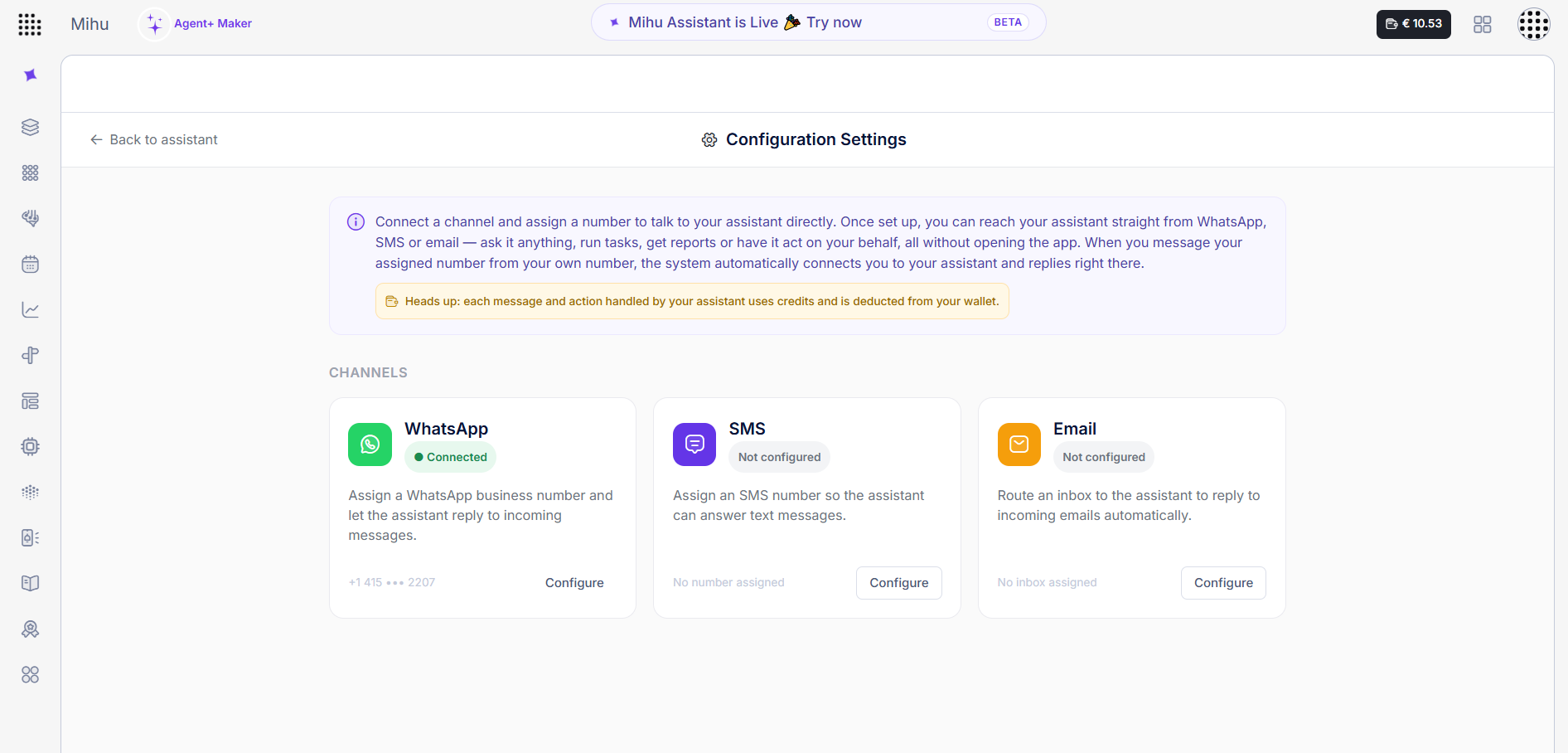
Three channels, one panel. Each one suits a different moment — here's where each earns its place.
On WhatsApp — your platform in your pocket
WhatsApp is where most of the world already lives, which makes it the most natural home for an on-the-go assistant. Assign a WhatsApp business number and you can run Mihu between meetings, from the car park, from anywhere.
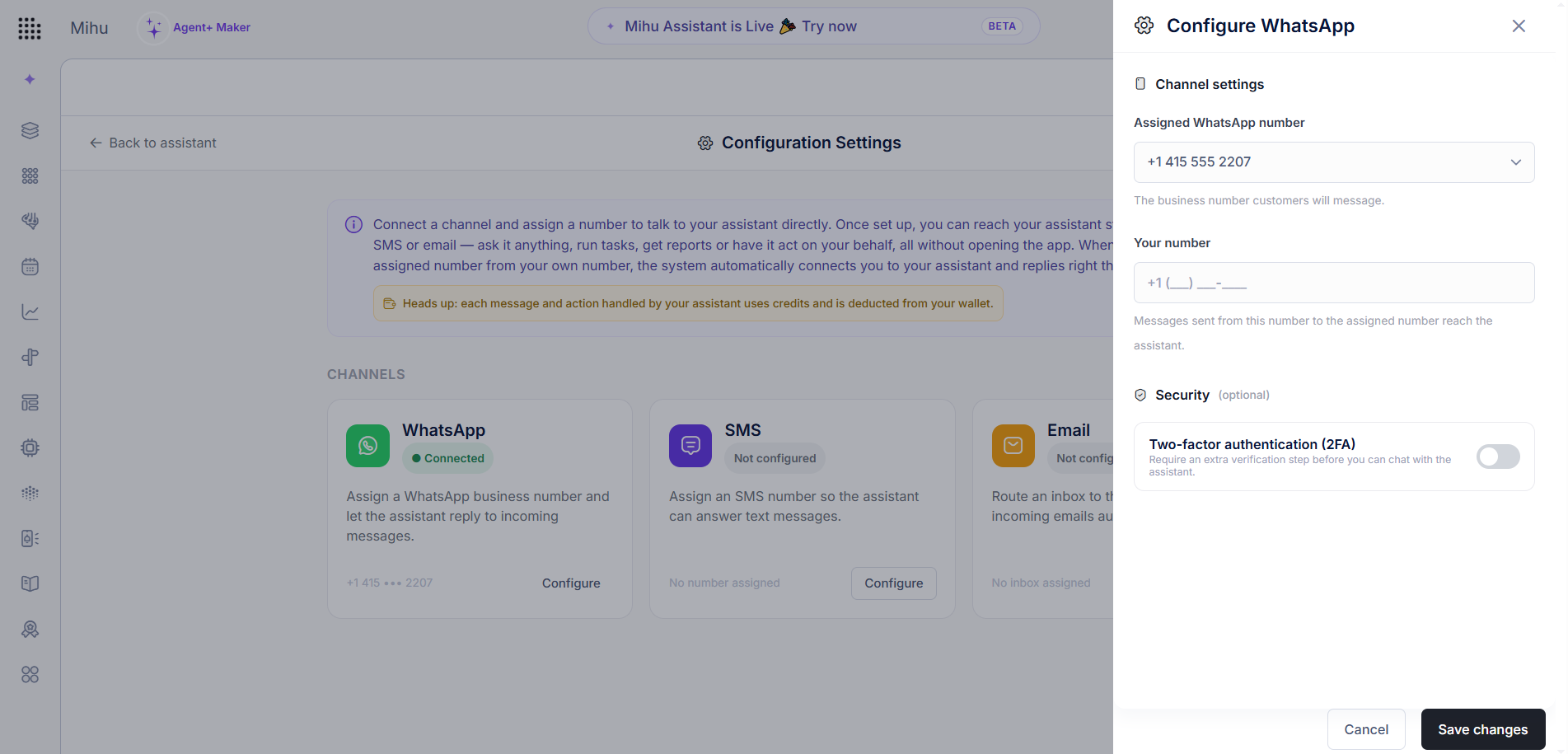
Use case. You're on the road and want a pulse check: message "How did the voice agent do today?" — it replies with the numbers. A customer flags an out-of-date answer, so you send "Add an FAQ: we now offer free delivery over €50" and it updates the knowledge base on the spot. It's the fastest, most casual way to keep your agents sharp without ever opening a laptop.
On SMS — the lowest common denominator that always works
SMS has no app to install, no data connection to rely on, and it reaches any phone on earth. That makes it perfect for quick operational commands and for people or environments where nothing fancier is available.
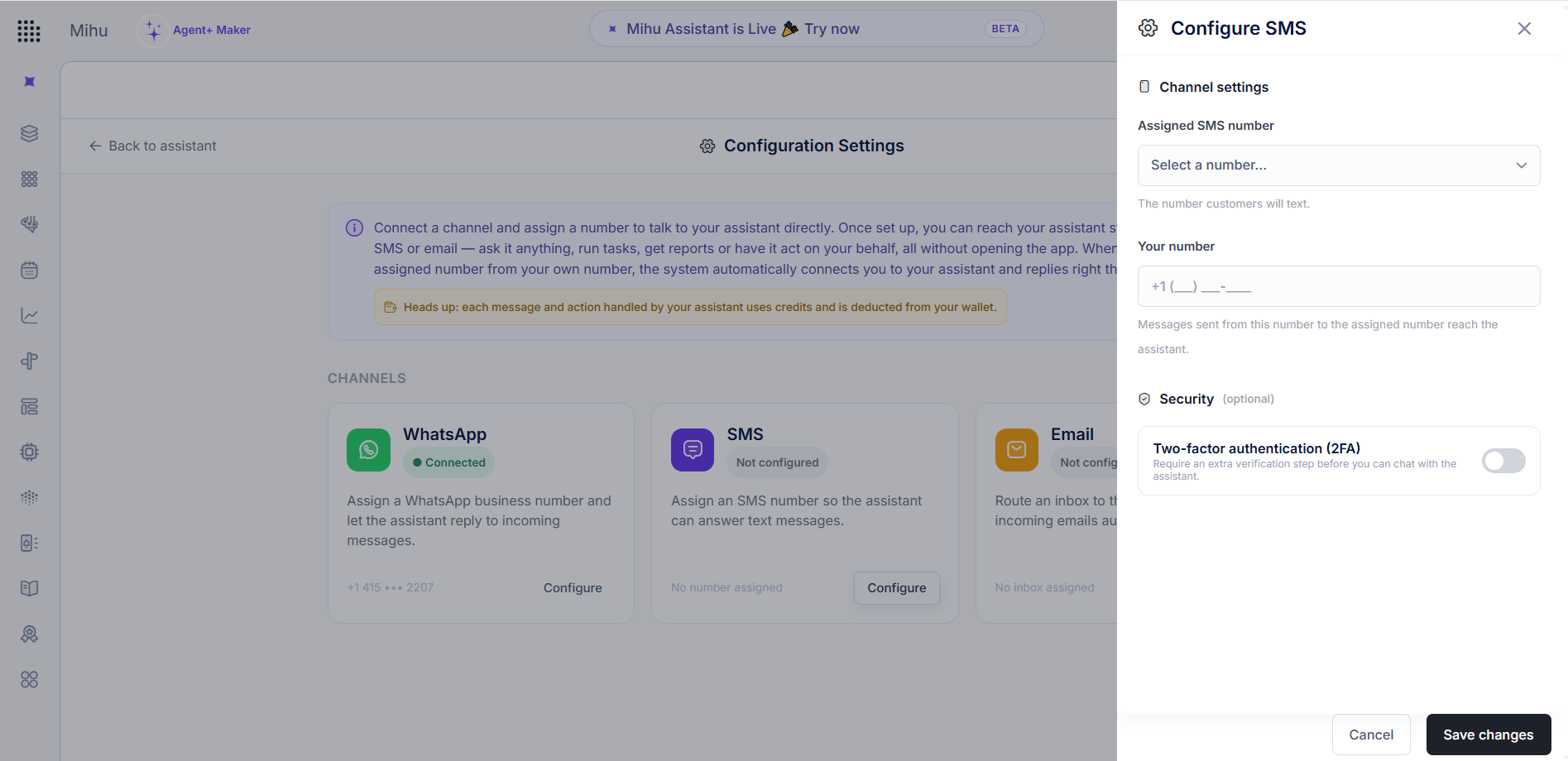
Use case. A campaign is misbehaving and you're nowhere near a screen — text "Pause the outbound campaign" and it stops. Later, "How many bookings did we take today?" comes back as a plain reply. Short commands, instant answers, from a phone with one bar of signal.
On Email — for the longer, heavier work
Email is where the more involved requests belong. There's room to write a detailed brief, you get a clean paper trail, and you can attach things — a spec, a spreadsheet, a customer thread to review.
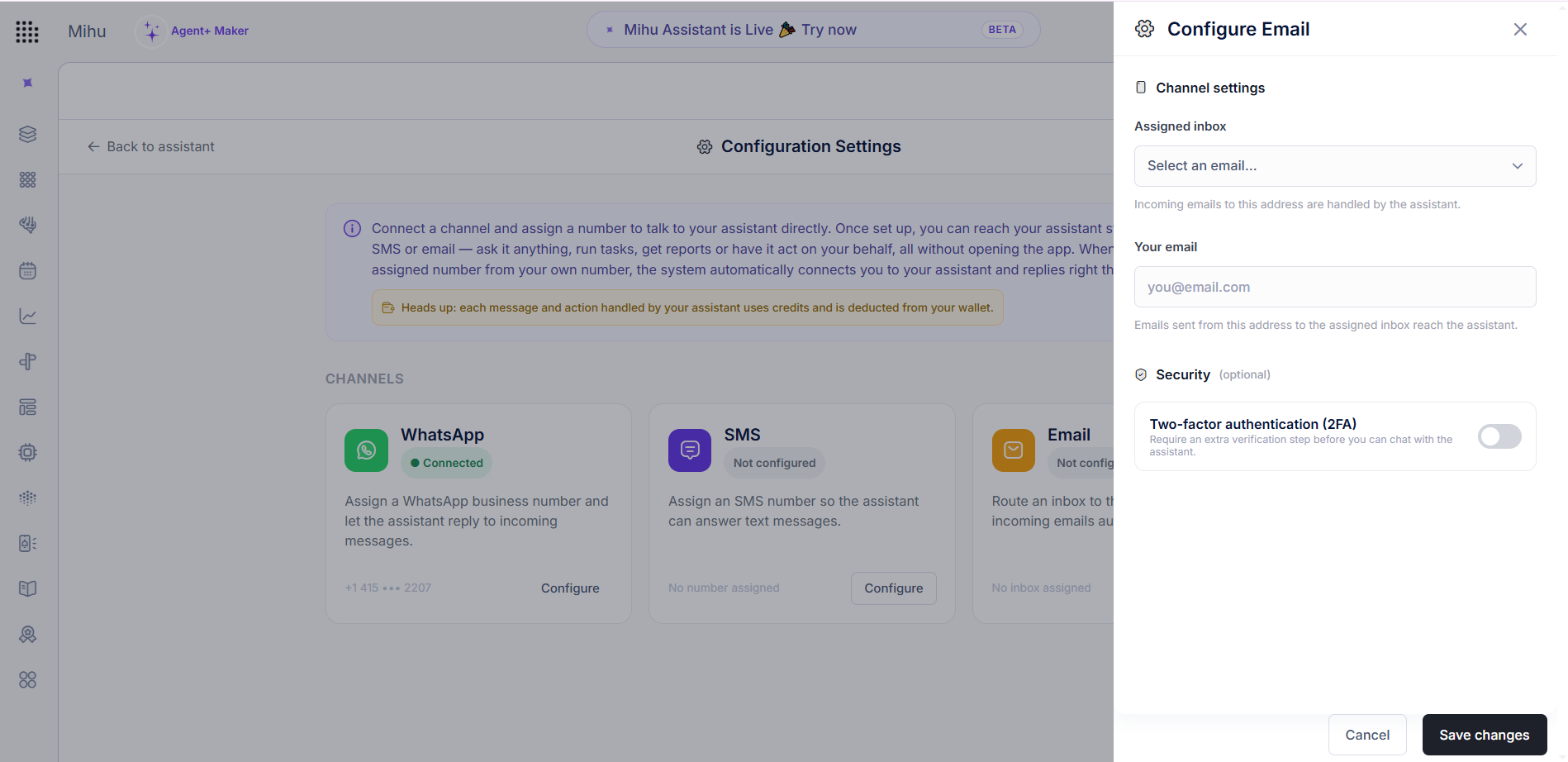
Use case. Email your assistant a full brief: "Build an integration between our booking agent and HubSpot — when someone books, create the contact, log the appointment, and tag the source as 'website'." It sets it up and emails you back to confirm. Or forward a messy customer thread and ask it to summarize the issue and draft a next step. Email suits the work you'd otherwise sit down at a desk to do.
Related: a more capable Email Agent (Launch Week Day 2)
Why this matters
Putting the assistant on the channels you already use isn't a convenience trick — it changes who can operate the platform and how fast things get done.
- ReachYour contact center in your pocket. No laptop, no login. If you can send a message, you can run Mihu.
- SpeedAct in the moment. Approve, pause, update, or check a number the second you think of it — not the next time you're at a desk.
- AccessLower the barrier. A non-technical teammate can operate the platform by texting a number — no training on the UI required.
- FitMeet people where they are. WhatsApp for the world, SMS for anywhere, email for the heavy lifting.
- FullEverything, not a subset. Training, integrations, session analysis, reports and actions — the same power as the app, from a thread.
One assistant, one context
Whichever channel you use, it's the same assistant — the same permissions, the same memory, the same guardrails. Start a task over email and follow up on WhatsApp, and it picks up where you left off. There's no separate "WhatsApp version" to keep in sync; there's just your assistant, reachable in more places.
A quick note on credits
Each message and action your assistant handles across these channels uses credits, deducted from your wallet — the same balance that powers the rest of your Mihu agents. So an assistant that's always a text away is also always accounted for.
Set it up in a minute
Open your assistant, go to Configuration Settings, choose WhatsApp, SMS or Email, and assign a number or inbox. Message it from your own number, and the system connects you straight to your assistant. That's the whole setup — from there, your contact center is one message away.
Day 1 gave you an assistant that runs the platform by conversation. Day 3 lets that conversation happen wherever you already are. That's the point of the Mihu Assistant on channels: less time in the app, more of your contact center handled from a single thread.
Frequently asked questions
What is the Mihu Assistant?
It's the conversational control layer for your Mihu account. Instead of clicking through settings, you talk to it — in plain language — to build and train agents, wire up integrations, analyze past sessions, pull live reports, and take actions across your contact center. It's like chatting with your platform the way you'd brief a teammate.
What can I do with the Assistant from WhatsApp, SMS or email?
Everything you can do with it inside the app. Train the AI, add knowledge, build or adjust integrations, analyze sessions, pull reports and trigger actions — all by messaging your assigned number or inbox. The channel is just a new front door to the same assistant.
Do I have to open the app to use it?
No. Once you assign a WhatsApp number, SMS number or inbox, you message it from your own number and the system automatically connects you to your assistant and replies right there. No login, no dashboard.
Is it still the same assistant across channels?
Yes. Whichever channel you use, it's one assistant with the same permissions, memory and guardrails. You can start a task over email and follow up on WhatsApp — it keeps the context.
Does using it cost credits?
Yes. Each message and action your assistant handles across these channels uses credits, deducted from your wallet — the same balance that powers the rest of your Mihu agents.
Put your assistant on your favourite channel
Open your assistant, connect WhatsApp, SMS or email, and start running your contact center from a single thread — training, integrations, analysis and actions, all by chatting.
Open your Assistant Chat to build · Runs on WhatsApp, SMS & Email · Same brain everywhere · €30 free credit