
A new workspace is an empty office with the lights already on: it works, but nothing in it says you yet. Four settings change that — the address people type, the lock on the door, who gets a key, and the name on the wall. None of them take long, and every one of them is easier now than after forty people have logged in.
Give It Your Address
Your team opens Mihu at your domain, not ours.
Every workspace ships with an address from us — something like yourworkspace.mihu.ai. It keeps working, and nothing here takes it away. But you can also point an address you own at the same workspace: app.yourcompany.com.
Now the browser bar says your company. So does every link your team shares. It is a small change that stops Mihu from feeling like somebody else's tool.
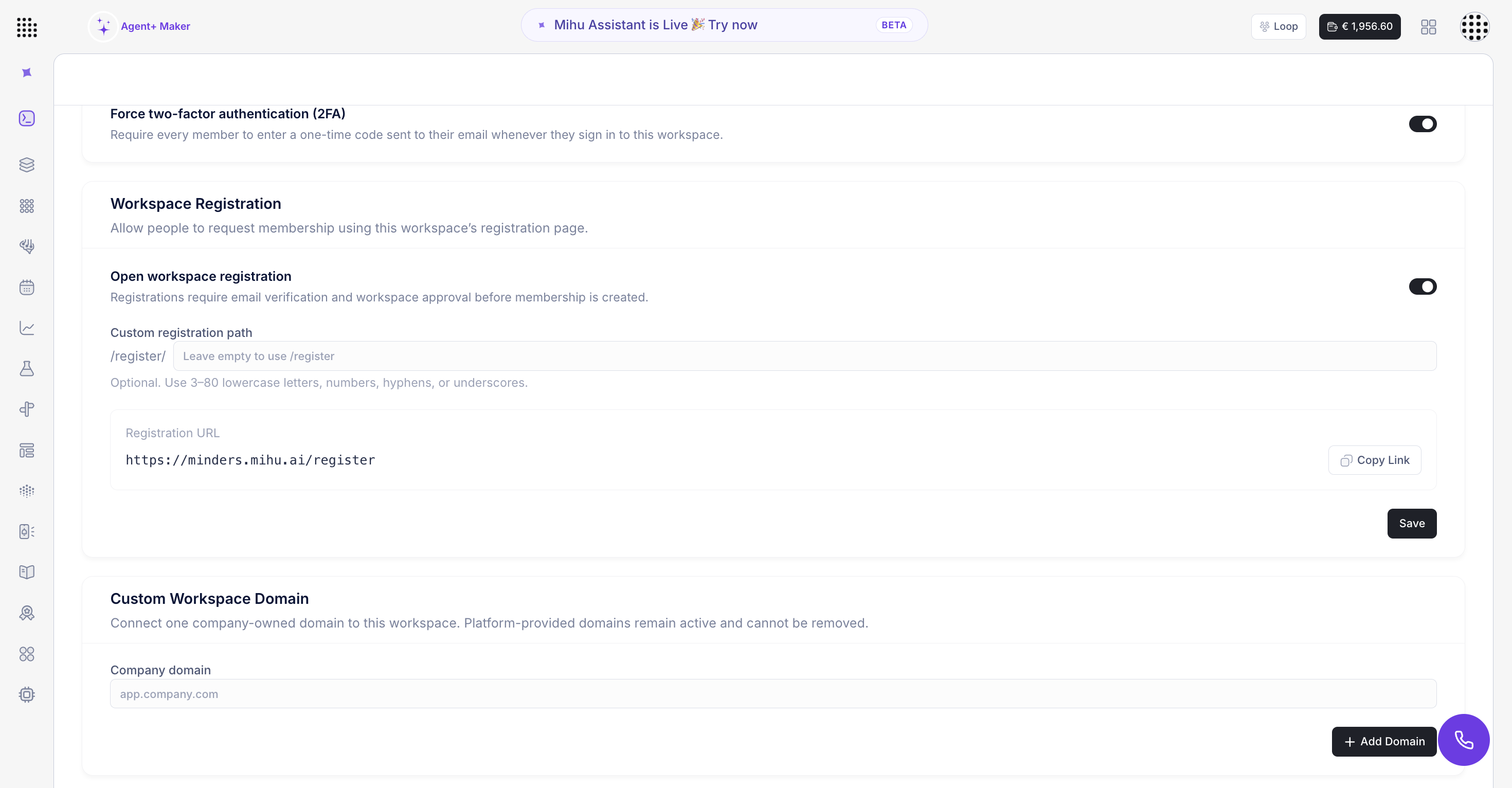
Adding your domain does not switch off the Mihu one. Both keep working.
Open Workspace Details → Custom Workspace Domain. One field, one button:
- Company domain — the address you want people to type, e.g.
app.yourcompany.com. This is what shows up in the browser bar. - Add Domain — save it. The new address goes in alongside the Mihu one, never instead of it.
Both then sit in your domain list: the one we gave you, the one you own, and whether each is live.
Lock the Door
One switch turns on 2FA for the entire workspace.
Security here is not a per-person chore. It is one setting that covers everyone in the workspace at once.
Turn on Require two-factor authentication (2FA). From that moment a password on its own is not enough — each person also types a one-time code sent to their email.
Flip it once. It applies to everyone.
Customer details and conversation history deserve more protection than a password alone.
Open Workspace Details → Security. It is one switch, and it covers everybody:
- Require two-factor authentication (2FA) — turn it on. It applies workspace-wide, so there is no per-person setup to chase.
- Nothing to install — the code lands in each person's email. No authenticator app, no QR codes, no support tickets on day one.
From the next sign-in, everyone types a password and then the code in their inbox. That is the whole change.
A leaked password stops being enough on its own. Someone would need the user's inbox too — and because the code arrives by email, nobody on your team has to install anything to be covered.
Hand Out Keys, Not Copies
Publish one link, and approve every request yourself.
Workspace Registration gives you a registration page. Leave it off and the link is inert — nobody can use it to ask for access.
Switch on Open workspace registration and anyone with the link can send a request. A request, not an account. They verify their email, and an administrator still has to approve them.
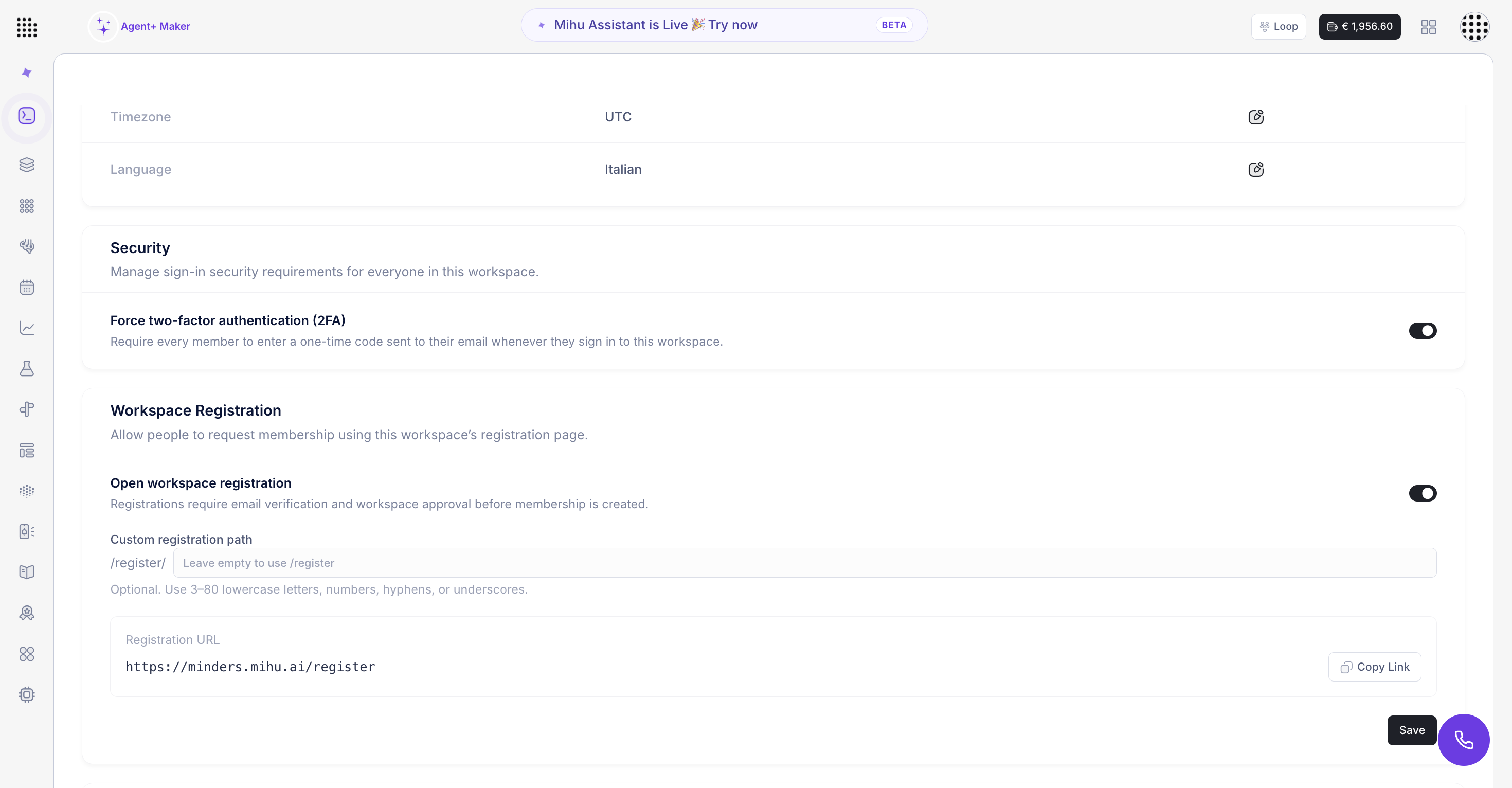
Pick your path, copy the finished link.
Open Workspace Details → Workspace Registration. Two settings, and the second one is optional:
- Open workspace registration — turn it on to publish the page. While it is off, the link gets nobody anywhere.
- Registration path (optional) — keep the standard
/register, or pick something people will actually remember. - Registration link — Mihu assembles the full link from your domain and your path. Copy it once, reuse it forever.
Sharing that link never hands out access. Everyone who uses it verifies their email, and an administrator approves or declines. You stay on the door.
Until an administrator approves it, a request is just a request.
Registration open
- One link instead of a dozen accounts made by hand
- People verify their own email address
- An administrator still approves every request
- Good for onboarding docs and new-starter packs
Registration closed
- The link cannot be used to request access
- You add every member yourself
- Nothing published, nothing to share
- Good for a small, fixed team
Try this: drop the link into your new-starter guide and stop creating accounts by hand. The new person asks, an administrator approves, and onboarding gets one step shorter.
Put Your Name on It
Name, logo, timezone, language — the details people notice daily.
Display Name is what your team sees. Timezone is the clock your reports and scheduled actions run on. Language is where new users start. Small fields — and every one of them is in front of somebody every day.
Swap the Logo
A fresh workspace wears our logo. Select the edit icon, upload yours, and it starts looking like the company your team actually works for.
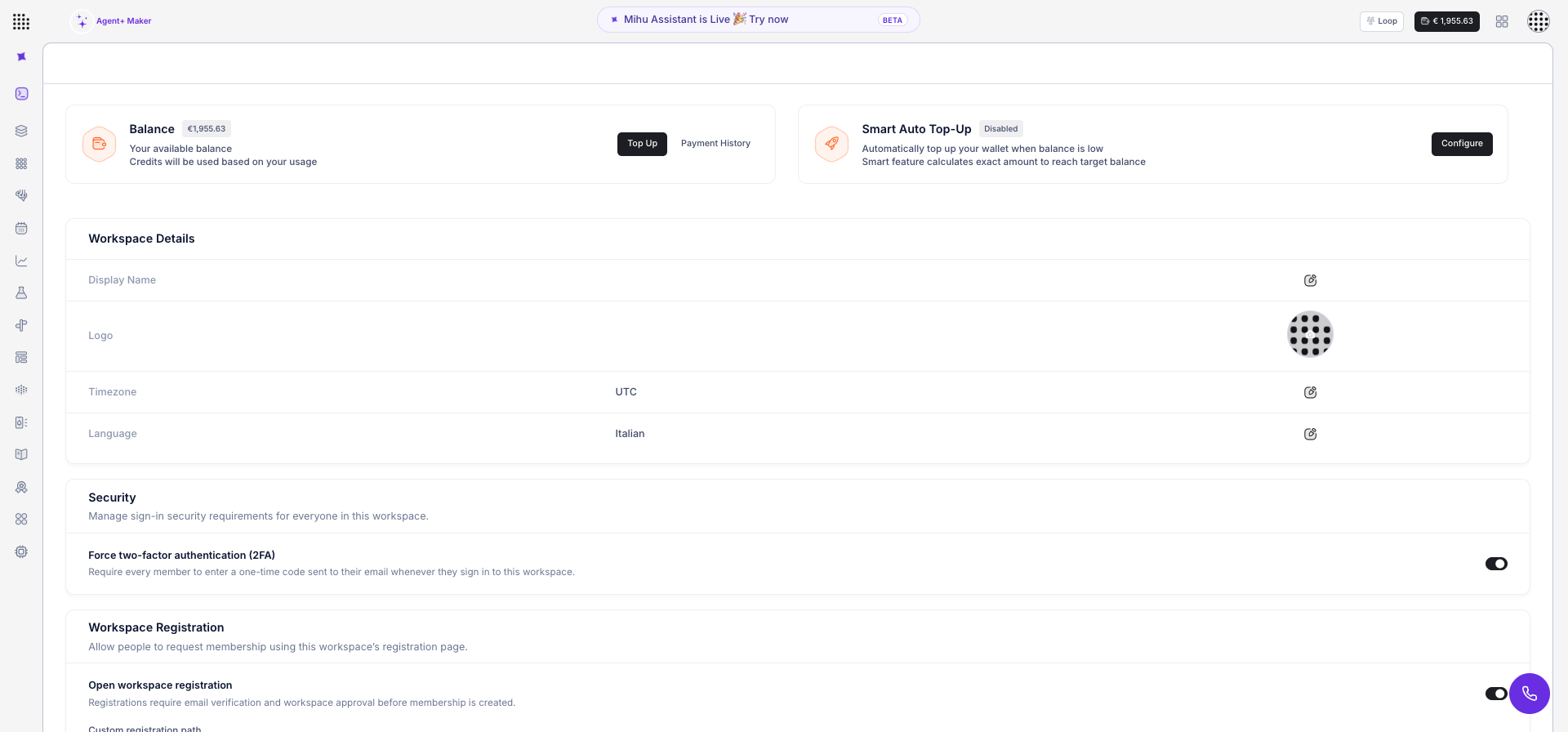
Name, logo, timezone, language — all on one screen.
Open Workspace Details. Four fields decide how the workspace looks and behaves for everyone:
- Display Name — what people see for the workspace, e.g. Acme Support.
- Logo — select the edit icon and upload your own. Until you do, our logo is the one up there.
- Timezone — the clock that reports and scheduled actions run on.
- Language — where new users start. Anyone can change their own afterwards.
Save, and your name and logo follow the workspace everywhere your team opens it.
Frequently Asked Questions
Does my Mihu address stop working once I add my own domain?
No. Your domain is added as a second address. The Mihu one keeps working exactly as before.
Can I require 2FA for only some people?
No — it is a workspace-wide setting. When it is on, everyone signs in with the code sent to their email.
If registration is open, can anyone walk in?
No. They can only ask. They have to verify their email, and an administrator has to approve the request.
Are the name and logo just cosmetic?
They are how your team knows it is in the right workspace — and they make Mihu feel like part of your company instead of a tool bolted on the side.
Tomorrow: Your Team
Address, lock, keys, name — Day 1 is done. Day 2 is about the people: inviting your team and giving each of them the right role.
Read Day 2: Bring Your Team Together →